Nothing kills a gaming session faster than a frame rate that stutters every time the action gets intense. You line up the perfect shot, the screen hitches, and by the time things smooth out, the moment is gone. Lag, long loading times, and sudden frame drops usually come down to a handful of causes: background programs fighting your game for resources, outdated graphics drivers, overly demanding settings, or hardware that is running too hot. This guide to game booster and fps booster how to improve your gaming performance explains what these tools actually do, which game booster and fps booster benefits are real, and how to raise your frame rate for free, with or without extra software.
Key Takeaways
- Game booster and fps booster explained in one line: a game booster frees up CPU, memory, and disk resources so your game gets first pick of your system, while an FPS booster focuses on raising and stabilizing your frames per second through smarter settings and less background waste.
- Realistic game booster and fps booster benefits include steadier frame pacing, fewer stutters on mid-range and older PCs, and faster game launch preparation.
- No software can beat weak hardware. If your graphics card cannot handle a game’s requirements, a booster will not turn it into a faster GPU.
- Free wins come first: update your graphics drivers, enable Windows Game Mode, lower the heaviest graphics settings, close background apps, and keep your PC cool.
At The Weird News Blog we like honest tech explainers, so this article keeps the marketing claims out. You will learn how game boosters work under the hood, when an FPS booster genuinely helps, when it is a waste of time, how to pick a safe one, and the exact free tweaks that improve gaming performance on Windows 10 and Windows 11. No hardware purchase is required for most of these fixes.
What Is a Game Booster?
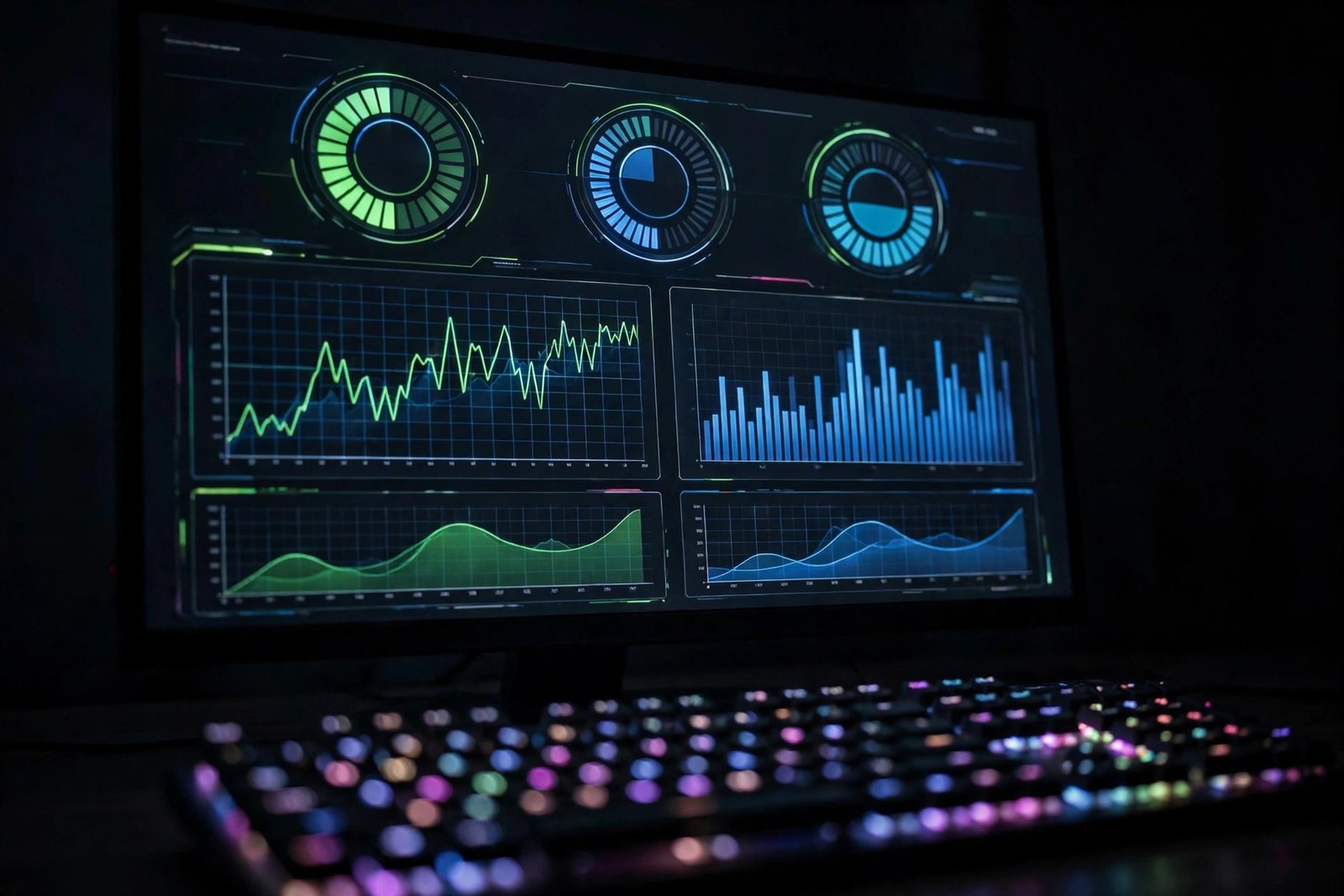
A game booster is a software utility that prepares your computer for gaming. Depending on the tool, it may temporarily close selected background applications, manage startup programs, adjust certain Windows settings, or show you live performance information such as CPU load, memory use, temperature, and frame rate.
Games are real-time applications, so background programs competing for CPU, RAM, and storage can cause micro-stutters and long loads. A game booster suspends or closes those tasks while you play and restores everything afterward. The gain is biggest on older or mid-range PCs; on machines with plenty of free resources, the difference is small.
How a Game Booster Works Under the Hood
Most game boosters use the same basic playbook, and understanding it helps you judge any tool before installing it:
- Process prioritization: the tool prioritizes the game process and suspends non-essential background tasks, so more CPU cycles reach the game engine.
- Memory cleanup: standby RAM is cleared and junk processes are closed, leaving more memory for the game.
- Interruption control: Windows updates, notifications, and background sync are paused to prevent sudden CPU spikes.
- Temporary system tweaks: some tools apply a high-performance power plan or disable visual effects for the session, then revert them.
- Performance monitoring: live CPU, GPU, RAM, temperature, and FPS readouts show you exactly what your system is doing.
What Is an FPS Booster?
An FPS booster is focused on one number: frames per second. FPS measures how many images your screen displays every second while a game runs. Higher and more consistent FPS makes motion look fluid and controls feel responsive, which matters most in fast games such as first-person shooters, battle royale titles, and racing games. A game at 30 FPS can feel sluggish next to the same game at 60 FPS, and competitive players on 144 Hz displays aim for frame rates that match their monitor’s refresh rate.
Rather than adding hardware power, an FPS booster helps your existing components work better through smarter graphics settings, less background waste, and bottleneck detection. No honest tool guarantees a fixed FPS increase, because results depend on your hardware and the game.
Note the difference between FPS and network lag: low FPS is a rendering problem inside your PC, while high ping is a network problem. A conventional FPS booster improves rendering but will not fix an unstable internet connection.
Game Booster vs FPS Booster: What Is the Difference?
The terms overlap, but a game booster is the generalist that prepares the whole system for gaming, while an FPS booster is the specialist that targets frame rate. Many modern tools bundle both functions, so judge the feature list rather than the marketing label.
| Feature | Game Booster | FPS Booster |
|---|---|---|
| Main goal | Prepare the system for gaming | Raise and stabilize frame rate |
| How it helps | Closes background apps, manages startup, pauses interruptions | Recommends graphics settings, cuts resource waste, flags bottlenecks |
| Best for | PCs slowed down by background programs | Games running below your target frame rate |
| Network latency | Usually does not affect ping | Usually does not affect ping |
| Free built-in option | Windows Game Mode | In-game performance presets |
| When it fails | Hardware is already the bottleneck | Hardware is already the bottleneck |
What Are the Real Game Booster and FPS Booster Benefits?
Used correctly, game booster and FPS booster tools offer several practical advantages. Here are the game booster and fps booster benefits you can reasonably expect:
- Reduced background activity: programs you forgot about stop consuming processing power and memory, which frees resources for the game.
- Better resource management: dashboards reveal which apps eat CPU and RAM, so you can decide what is safe to close during a session.
- Faster game preparation: launch profiles and saved optimization presets make routine setup a one-click job instead of a checklist.
- Improved consistency: fewer background interruptions means fewer sudden stutters, especially on systems with limited resources.
- Convenient performance monitoring: live CPU, GPU, temperature, and FPS readouts help you diagnose why a particular game runs poorly.
- Longer hardware comfort: smoother scheduling and less background churn can reduce heat spikes, which helps cooling do its job.
The honest caveat: consistent performance also depends on cooling, hardware capability, and how well the game itself is optimized. A booster polishes what you have; it does not replace what you lack.
How to Improve FPS Without Spending Money
You do not need a paid tool to improve your gaming experience. These free adjustments deliver the biggest gains for most players:
- Update your graphics drivers. Download compatible updates from NVIDIA, AMD, Intel, or your computer manufacturer’s official site. Driver updates fix bugs and improve compatibility with new games.
- Adjust graphics settings. Shadows, reflections, ambient occlusion, and ray tracing cost the most. Lower them first, or reduce resolution or use the game’s performance preset for a big FPS jump.
- Close unnecessary applications. Before gaming, close apps you do not need, especially browsers with many tabs and file sync tools. Never end unfamiliar Windows processes, since some are required for system stability.
- Enable Game Mode. In Windows Settings under Gaming, Game Mode prioritizes the active game, defers updates during play, and reduces background CPU spikes.
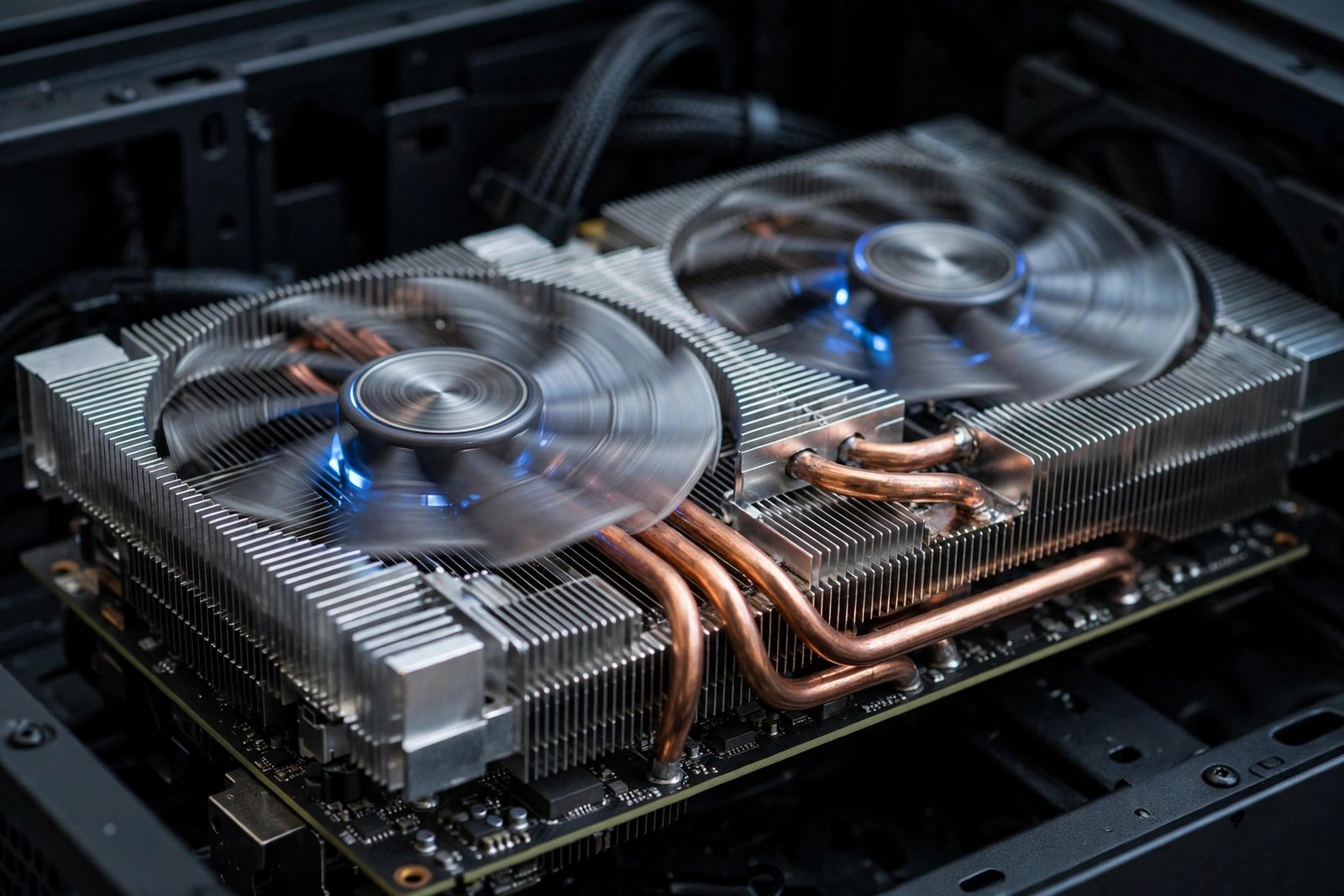
- Check your computer’s temperature. Overheating forces your CPU or GPU to throttle. Keep vents clear, clean dust carefully, and make sure fans work.
- Use appropriate power settings. On laptops, battery-saving modes limit performance. Plug in your charger and pick a high-performance power mode when gaming.
- Keep games updated. Developers patch performance problems regularly, so install game updates when they arrive.
Can an FPS Booster Increase Gaming Performance on Every PC?
No. Results depend on the bottleneck. Heavy background load, overly demanding settings, or a bad driver can all be fixed with software. But if your graphics card cannot handle a game’s requirements, a booster cannot turn it into a faster GPU. Insufficient RAM, slow storage, network latency, and overheating need their own fixes: more memory, an SSD, a better connection, or improved cooling. Anyone promising guaranteed double or triple FPS is selling hype, not help. If your GPU also powers creative AI work, see our Kling 4.0 review for whether the latest AI video model is worth its GPU time.
How to Choose a Safe Game Booster
Not every game booster is worth installing. Some make exaggerated promises, bundle unwanted programs, or request permissions they do not need. Before downloading anything, run through this checklist:
- Choose software from a reputable developer with a real website and support page.
- Read the feature list and privacy policy before installing.
- Avoid programs promising guaranteed double or triple FPS.
- Check whether the tool needs administrator access, and ask why.
- Download only from official websites or trusted app stores.
- Avoid tools that disable essential Windows services without a clear explanation.
- Create a system restore point before making significant system changes.
A trustworthy utility explains exactly what it changes and lets you reverse those changes when you are done. Free, well-known options such as Windows Game Mode and Razer Cortex cover most players’ needs without costing anything.
Frequently Asked Questions
What is game booster and fps booster how to improve your gaming performance?
That phrase describes the topic itself: game booster software and FPS booster tools, plus the techniques that improve your gaming performance. A game booster frees system resources for your game, an FPS booster targets smoother frame rates, and the best results come from combining both with updated drivers and sensible settings.
Are game boosters safe to use?
Reputable ones are. They close non-essential processes and apply temporary settings, then restore everything after your session. Avoid unknown developers, never disable Windows services you do not understand, and create a restore point before big changes.
Will a game booster double my FPS?
Almost certainly not. Realistic gains are smoother frame pacing and fewer stutters, mostly on PCs with heavy background load or modest hardware. Doubling your frame rate requires lower settings or a better GPU.
Do I need a paid FPS booster?
Usually not. Windows Game Mode, in-game performance presets, updated drivers, and closing background apps deliver most of the benefit. Paid tools add conveniences like network route optimization, but they are optional.
Does Windows Game Mode do the same thing as a game booster?
It covers the core job: prioritizing the game process, deferring updates, and reducing background CPU spikes. Third-party boosters add overlays and one-click profiles, but Game Mode is the safest free baseline.
Can a game booster fix lag or high ping?
No. FPS boosters improve rendering inside your PC. High ping and packet loss are network problems, and they need a better connection or a closer server, not a frame-rate tool.
Do game boosters work with Steam, Epic, and other launchers?
Yes. Most boosters optimize the system itself, not individual games, so they work with virtually any PC game regardless of launcher.
Final Thoughts on Game Booster and FPS Booster Tools
Game booster and fps booster how to improve your gaming performance comes down to a simple recipe: give your game the resources it needs, cut what it does not, and keep your system healthy. A good game booster simplifies that preparation and shows you what your system is doing. An effective FPS booster helps you pick the right settings and keeps your frame rate consistent.
Start with the free fixes: drivers, Game Mode, settings, and temperatures. Add a reputable booster only if background load still hurts performance, and test changes one at a time so you can tell what actually helped. If you want to share your smoother gameplay, a screen recorder can capture your matches in high quality.